


Print-Ready Artwork – Guidelines
Artwork & Templates
Follow these steps to choose your template, set up artwork correctly, and send files that print exactly as intended.
1. Choose a product and template
Required
- Select your product on our website.
- Use the guided checkout to reach the correct template for your chosen size, or download from the Templates tab at the bottom of the product page (see Video below).
2. Download your graphic template
Required
- Open the PDF template in Adobe Illustrator for best results. Illustrator supports linking Photoshop files and vector artwork.
- Template scale: supplied at 25% size. Our RIP scales artwork to 100% at print stage.
Quick video: Using our graphic templates
What’s covered in this 30-second video
- Finding the correct template using the on page guide
3. Setting up your artwork
Required
- Set colour mode to CMYK.
- Use the template's FIVE LAYERS correctly:
- Artwork – place all design here.
- Bleed – extend backgrounds or images 3mm beyond the cut line.
- Cut/Stitch lines – for finishing only, keep text and logos away.
- Instructions – includes checklist and size info. Hide before export, do not delete.
- Safe Area – keep important content inside this area.
- One artwork per template – for example, 10 designs = 10 separate files.
Not accepted
- Artwork created on the wrong layer.
- Multiple designs on one template.
- Deleting bleed, cut, or instruction layers.
- Files in RGB colour mode.
4. Saving and sending your files
Checklist before export
- All fonts outlined.
- Linked Photoshop files converted to CMYK at 300 dpi.
- Apply a clipping mask at the edge of the bleed to reduce file size.
Export settings
- Save as PDF/X-4:2010.
- Enable Create Acrobat layers from top level layers.
- Hide the Instructions layer before saving.
Accepted file format
PDF only (set to FOGRA39L colour profile)
FOGRA39L is the industry-standard CMYK colour profile for high-quality litho and digital printing. It ensures colour accuracy and consistency between your screen, proof, and final printed display.
Avoid when exporting
- Multiple artworks or designs on one page or artboard.
- Incorrect width to height ratio or altered or scaled templates.
- RGB colour mode, missing links, non-embedded images, or un-outlined fonts.
- Do not submit password-protected or locked PDF files.
Please remember: Do not duplicate a template artboard for multiple designs in a single PDF.
Supply ONE design per template as separate PDFs.
5. Preflight checklist
Required
Before submitting, open your exported PDF in Adobe Acrobat or Reader to confirm layers and colours appear as expected. This helps catch issues early.
6. Submitting your artwork
Online orders
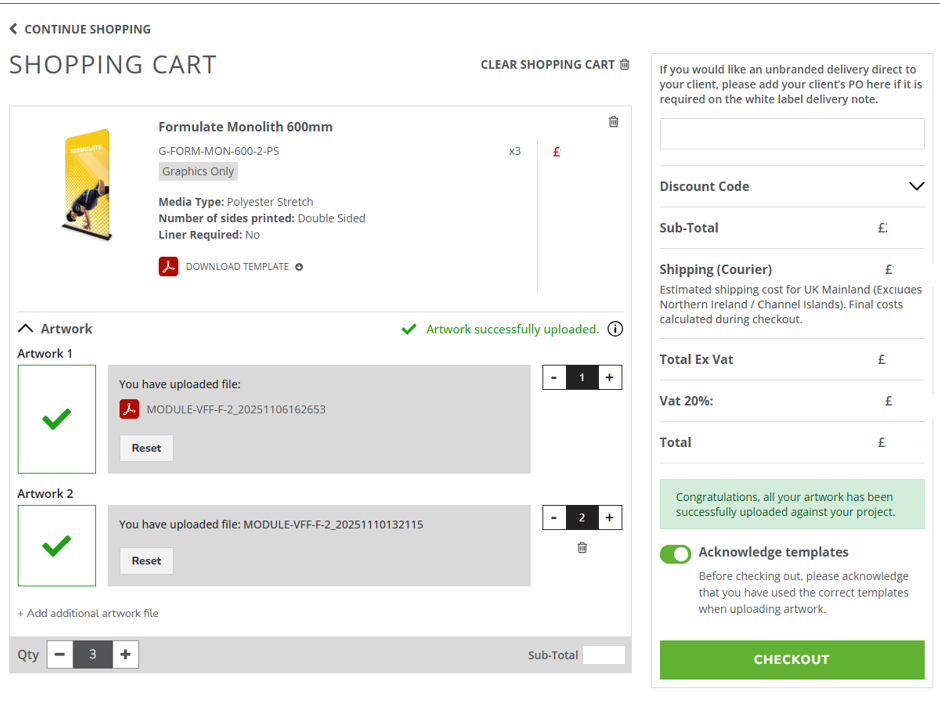
When shopping on our website you can upload your artwork in the basket as part of the checkout process. This upload route is for files linked to an order and isn’t a general file drop.
Maximum file size: 75 MB per upload.
Your artwork is automatically linked to your order at checkout.
Via email or file transfer
We accept artwork by almost any method — as long as we receive an accessible PDF file:
- WeTransfer
- MailBigFile
- Dropbox
- Zipped email attachments
Please send artwork to orders@ultimadisplays.com, and include your order reference or purchase details so we can match it to your job.
7. Artwork approval
White-label approval (B2B-friendly)
No matter how your order is placed - whether by email or through our online store - the artwork approval process is exactly the same. We’ll send an unbranded approval email to your end customer from info@gfxupload.com, allowing them to review and approve the artwork directly. This ensures your client signs off on their design without you needing to get involved, so you can shop with confidence.
Important: Delays in approvals impact production and delivery lead times.
Need help with artwork or templates?
From choosing the right template to preflighting your PDFs, our team can help you submit print-ready artwork first time.